← Back to Home

Support & User Guide

New here? Start with "Getting Started" — you will have a working wallet in about a minute. Already set up? Jump to any section below for step-by-step help.

What is BSV Wallet?

A free, open source Bitcoin SV wallet for iOS and Android. It holds your money, sends it to whoever you like, and receives it back — with the keys living on your phone rather than on somebody else's server.

The home screen is the whole app

Open the wallet and you see three things: your balance, two buttons, and your recent activity. Tap Pay to send money, Get paid to receive it. Everything else — currency, backups, app connections, network settings — sits behind the gear icon in the top right.

Tap the balance itself to cycle through the ways of showing it: satoshis, whole BSV, or your display currency. Pull the activity list down to refresh it.

"Self-custodial" means exactly what it says. The twelve secret words created when you set up are the only way back into this wallet, and nobody else has them — not the BSV Association, not your phone manufacturer. That is the point, and it is also the responsibility: see Backup & Recovery before you put real money in.
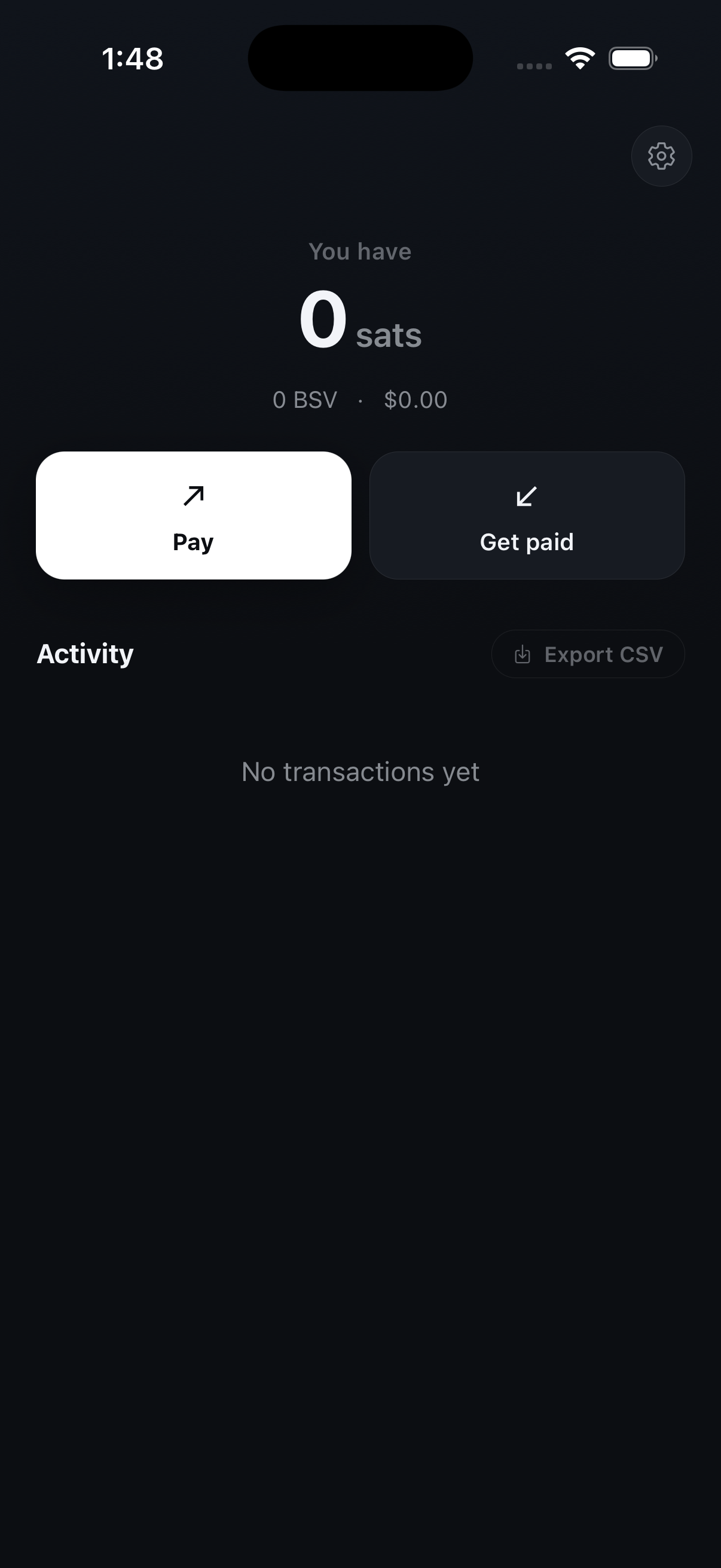
The BSV Wallet home screen showing the balance, the Pay and Get paid buttons, and the activity list

Getting Started

Two steps: create the wallet, then write down the words that can restore it. The first takes seconds; the second is the one that matters.

Step 1: Create or import a wallet

On first launch the app offers two routes. Create a new wallet generates a fresh twelve-word recovery phrase on your device. Import an existing wallet takes a phrase you already have — from another BSV wallet, or from this app on an old phone.

Either way your phone asks for Face ID, Touch ID, or your device passcode. That biometric lock is what guards the stored keys from anyone holding your unlocked phone.

Importing from paper? If you have three printed recovery sheets rather than a phrase, choose the recovery-sheet route instead and scan any two of the three.

A newly created wallet showing a zero balance, ready to receive its first payment

Step 2: Save your secret words

The app shows you twelve words in order. Write them on paper and put the paper somewhere only you can reach. Anyone who reads those words owns everything in the wallet, and nobody can reset them for you.

You can always see them again later: Settings → Copy Secret Words. If you would rather have paper than handwriting, Print Recovery Keys produces three sheets and any two of them rebuild the wallet — so losing one page costs you nothing.

Do not photograph the words and do not store them in a notes app or a cloud drive. Anything that syncs is something that can leak. Paper, in a place you control, is the whole idea.

The Settings screen showing Display Currency, Connect to App, Copy Secret Words, and Print Recovery Keys

Paying Someone

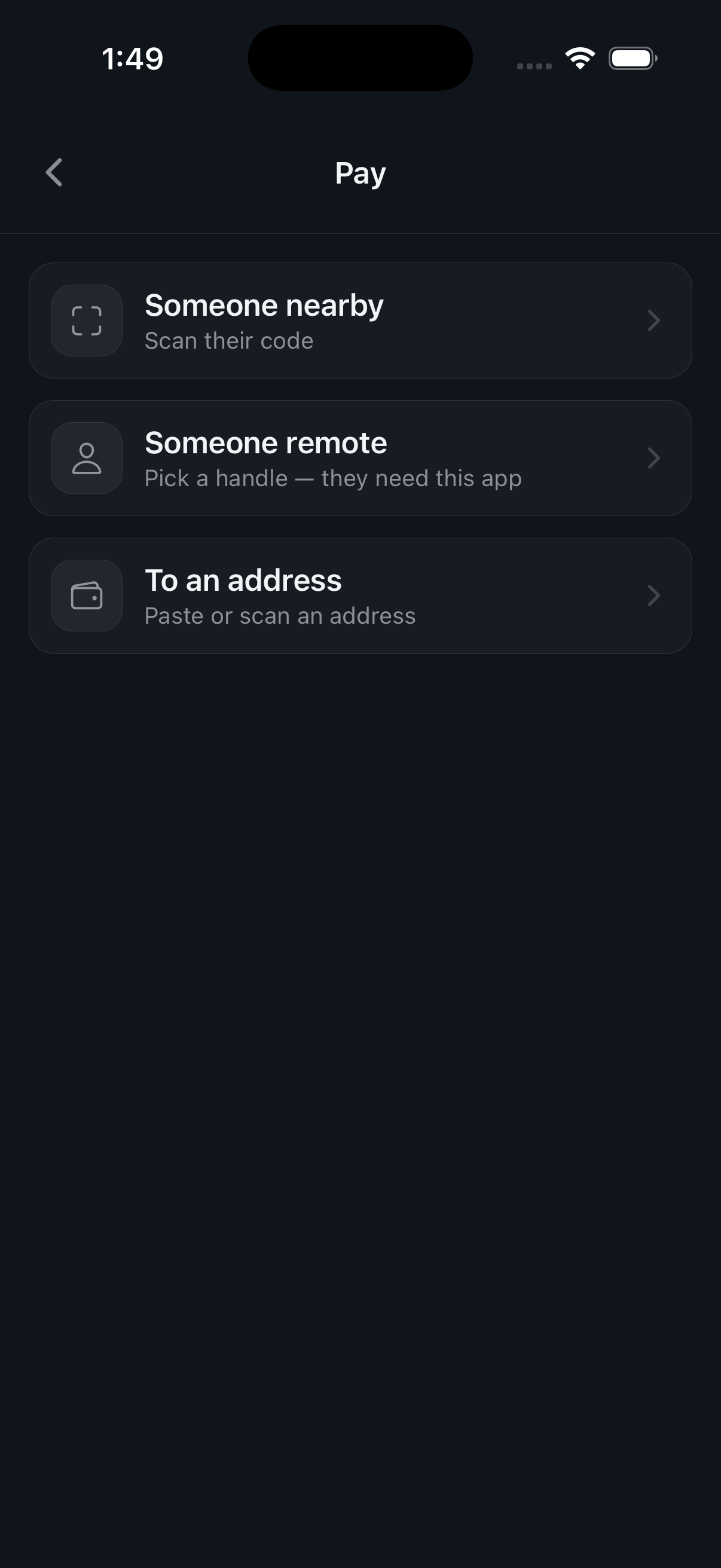
Tap Pay and the wallet asks one question: who are you paying? Pick the row that matches the situation and it works out the rest.

Someone nearby — scan their code

They are standing in front of you. They open Get paid → Someone nearby and show a code; you tap Pay → Someone nearby and scan it. If they set an amount, you see it before you confirm. If they left it at zero, you enter what you want to send.

This route needs no address typed and no network lookup of who they are: the code carries everything the two phones need.

Someone remote — pay a handle

They are somewhere else and they use this app too. Choose Someone remote, pick their handle, enter an amount, and send. The payment reaches them the next time their wallet checks in, whether or not their phone is awake right now.

To an address

For everyone else: exchanges, older wallets, anything that gave you a plain BSV address. Choose To an address, then paste or scan it and enter the amount.

Check the address before you confirm. A BSV payment cannot be recalled once it is broadcast. Paste it, read the first and last few characters against the source, and only then send.

The Pay screen listing Someone nearby, Someone remote, and To an address

Getting Paid

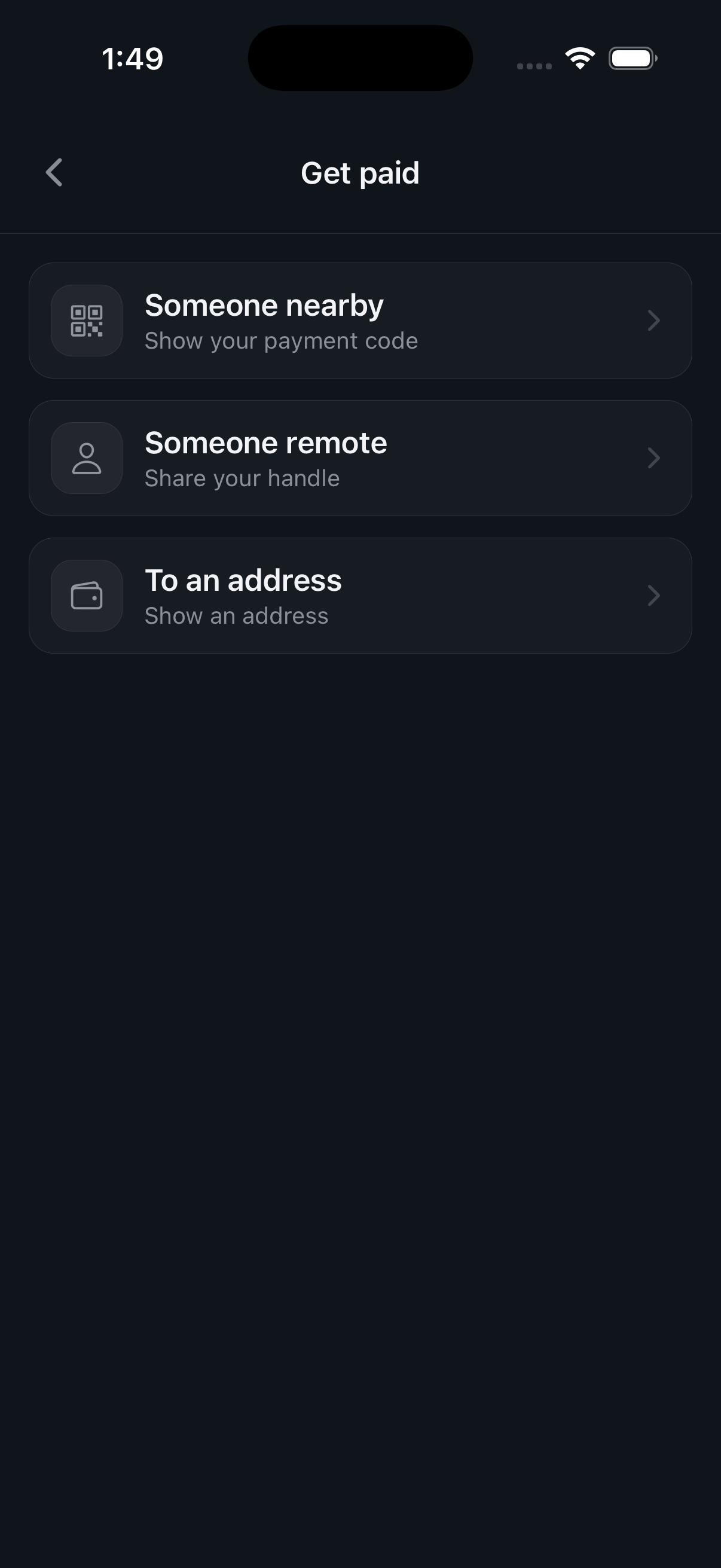
Get paid mirrors Pay exactly: the same three routes, pointing the other way.

Someone nearby — show your code

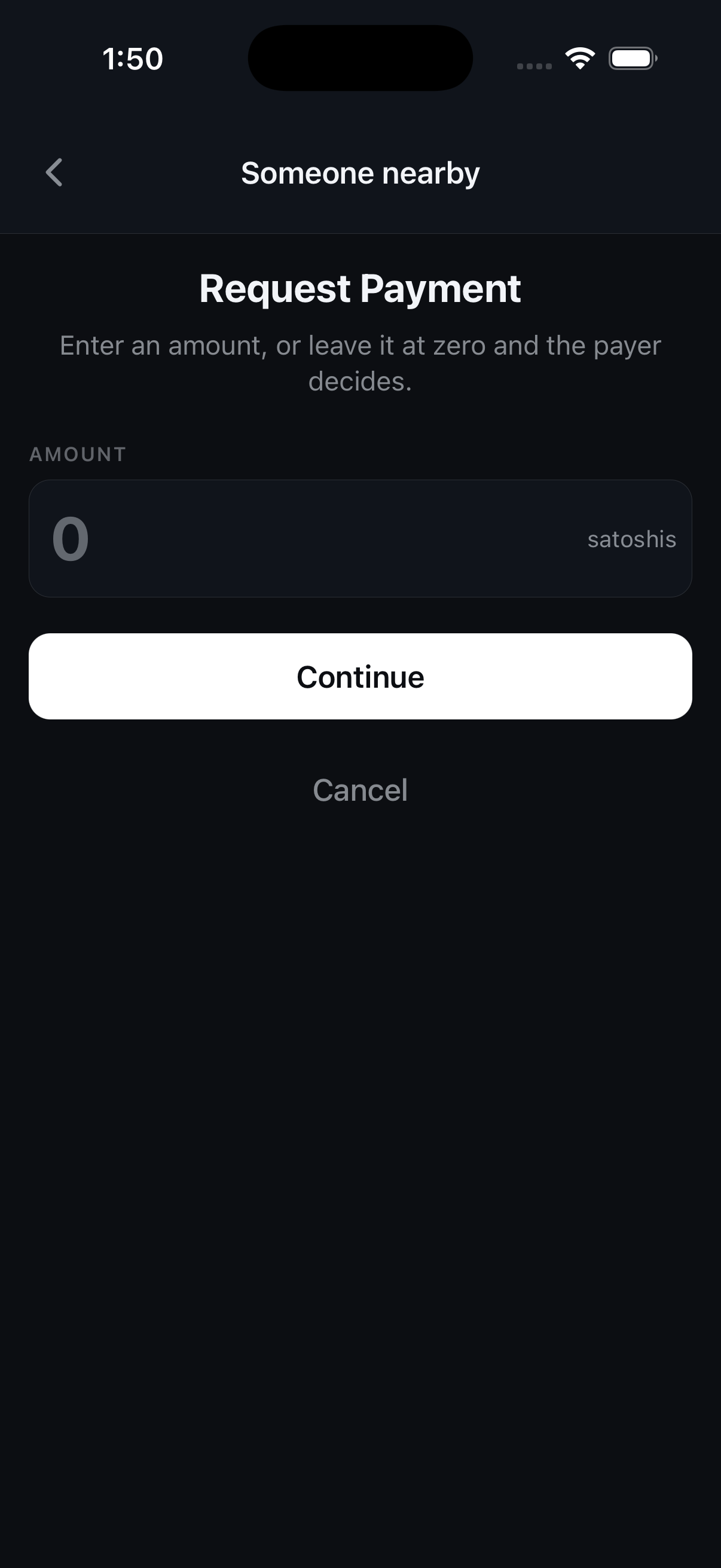
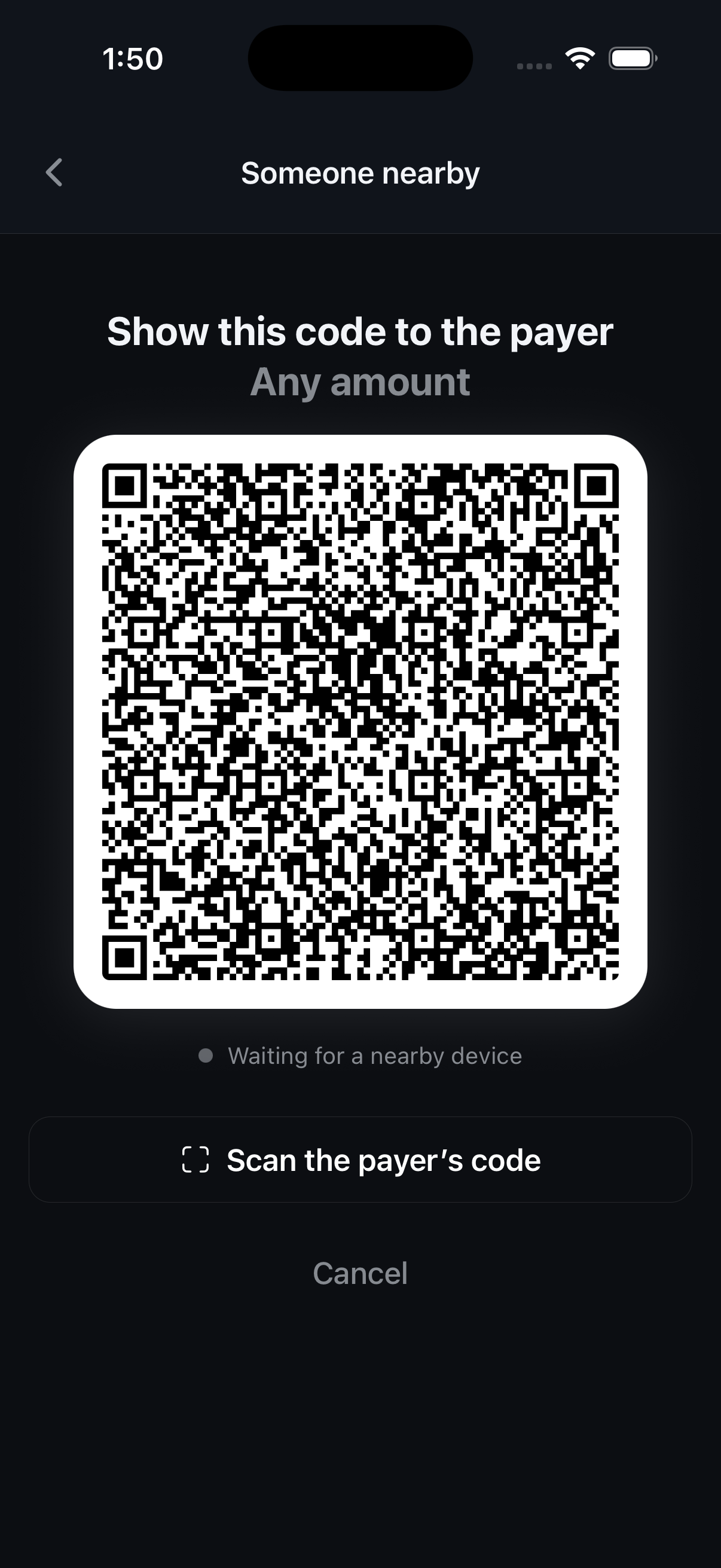
Choose Someone nearby. The wallet asks for an amount first: type one to request a specific sum, or leave it at zero and let the payer decide. Tap Continue and your payment code appears full-screen for them to scan.

The line under the code tells you what is happening — it waits for a nearby device, then confirms when the payment lands. If it is easier for you to scan them instead, tap Scan the payer's code on the same screen.

Someone remote — share your handle

Your handle is a name other people in this app can pay without needing an address. Choose Someone remote to see it and share it however you like — message, email, out loud.

To an address

When the sender is an exchange or a wallet that only understands plain addresses, choose To an address and the wallet shows one you can copy or let them scan.

The Get paid screen listing Someone nearby, Someone remote, and To an address
The Request Payment screen with an amount field, where zero means the payer chooses The payment code shown full screen, waiting for a nearby device to scan it

Activity

Everything the wallet has sent or received, newest first, grouped by day.

Reading the list

Each row shows who the payment involved, what it was for when a description was attached, and the amount — positive for money in, negative for money out. Tap a row to open its details, including the transaction ID you can look up on any block explorer.

A payment that has been broadcast but not yet confirmed is marked as such. It is normal for this to last seconds rather than minutes; the balance updates as soon as the network accepts it.

Export CSV

Export CSV at the top of the activity list writes the whole history to a file you can share or open in a spreadsheet — useful for bookkeeping or tax records. The button is greyed out until there is at least one transaction to export.

The activity list on the wallet home screen with the Export CSV button above it

Connecting to Apps

The wallet can act as the signer for apps running somewhere else — on your laptop, or in a browser tab. The app asks; your phone approves.

Pairing with an app

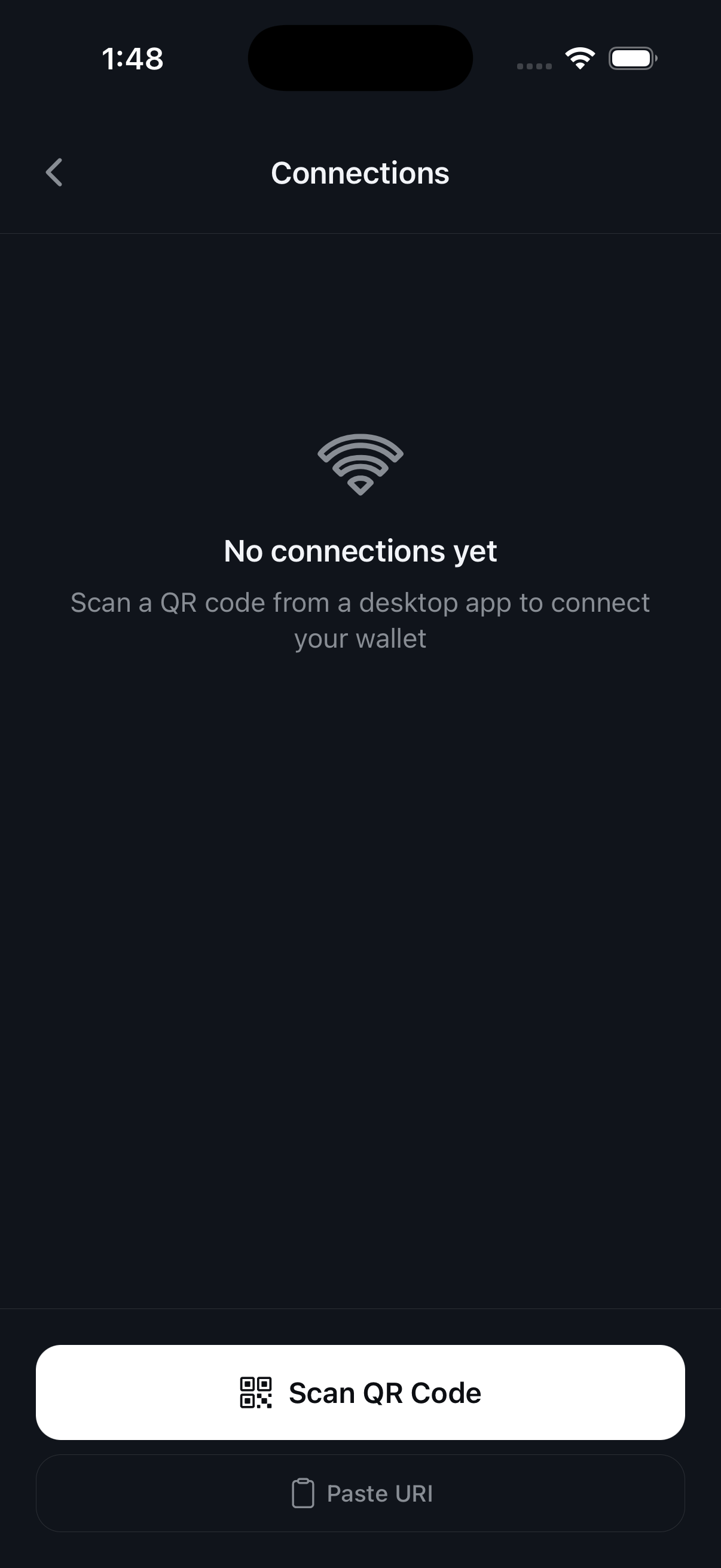
Go to Settings → Connect to App, tap Scan QR Code, and point your phone at the pairing code the app is showing. If you have the pairing link as text instead, tap Paste URI.

Once paired, the app appears in this list. Anything it wants to do — spend, sign, reveal an identity certificate — arrives on your phone as a request you approve or refuse. Nothing happens silently.

This works with any app that speaks BRC-100, the open wallet standard, so there is no plugin to install and nothing tied to a single vendor.

Tired of approving the same small payment? Under Settings → Advanced → Auto Spend Up To you can let payments below a limit you set go through without a prompt. Set it to zero to be asked every time.

The Connections screen with the Scan QR Code and Paste URI buttons

Backup & Recovery

There is no password reset here. These are the ways back into your wallet if the phone is lost, and they only work if you set them up beforehand.

Your secret words

Twelve words, in order, created when the wallet was. Enter them into this app on a new phone — or into any other BSV wallet that accepts a standard recovery phrase — and your money comes back.

Settings → Copy Secret Words shows them again and copies them to the clipboard. Paste them straight into wherever they are going and do not leave them sitting on the clipboard longer than you need.

Print Recovery Keys

Settings → Print Recovery Keys produces three sheets. Any two of them rebuild the wallet; any one of them on its own is useless to a finder. Store them in three different places — a drawer at home, a relative's house, a safe deposit box.

This is the better option if your handwriting worries you, or if you want a backup that survives one location burning down.

Private backup

The app can also keep an encrypted copy of its database on a server run by the BSV Association, so a new phone can restore not just your keys but your transaction history. It is encrypted with a key derived from your own secrets — the server cannot read it.

Under Settings → Advanced you can switch this off, and you can erase what has already been sent. The two are separate on purpose: switching off stops new copies, erasing removes the old ones.

A recovery phrase alone does not restore everything. It rebuilds your keys and your money, but not the record of which keys were used with whom. If you turn private backup off, keep your own export as well — see Settings below.

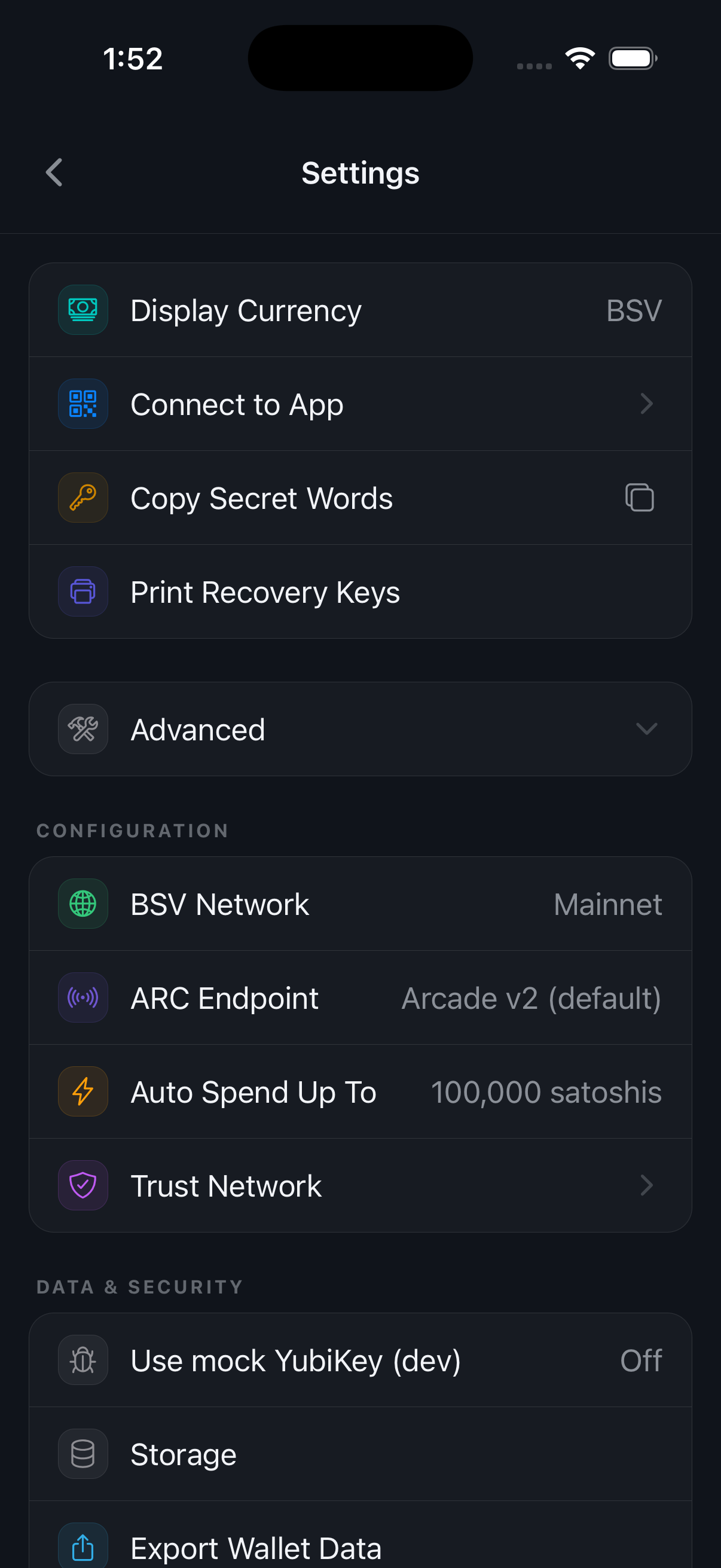
Settings with the Advanced group expanded, showing configuration and data options

Settings

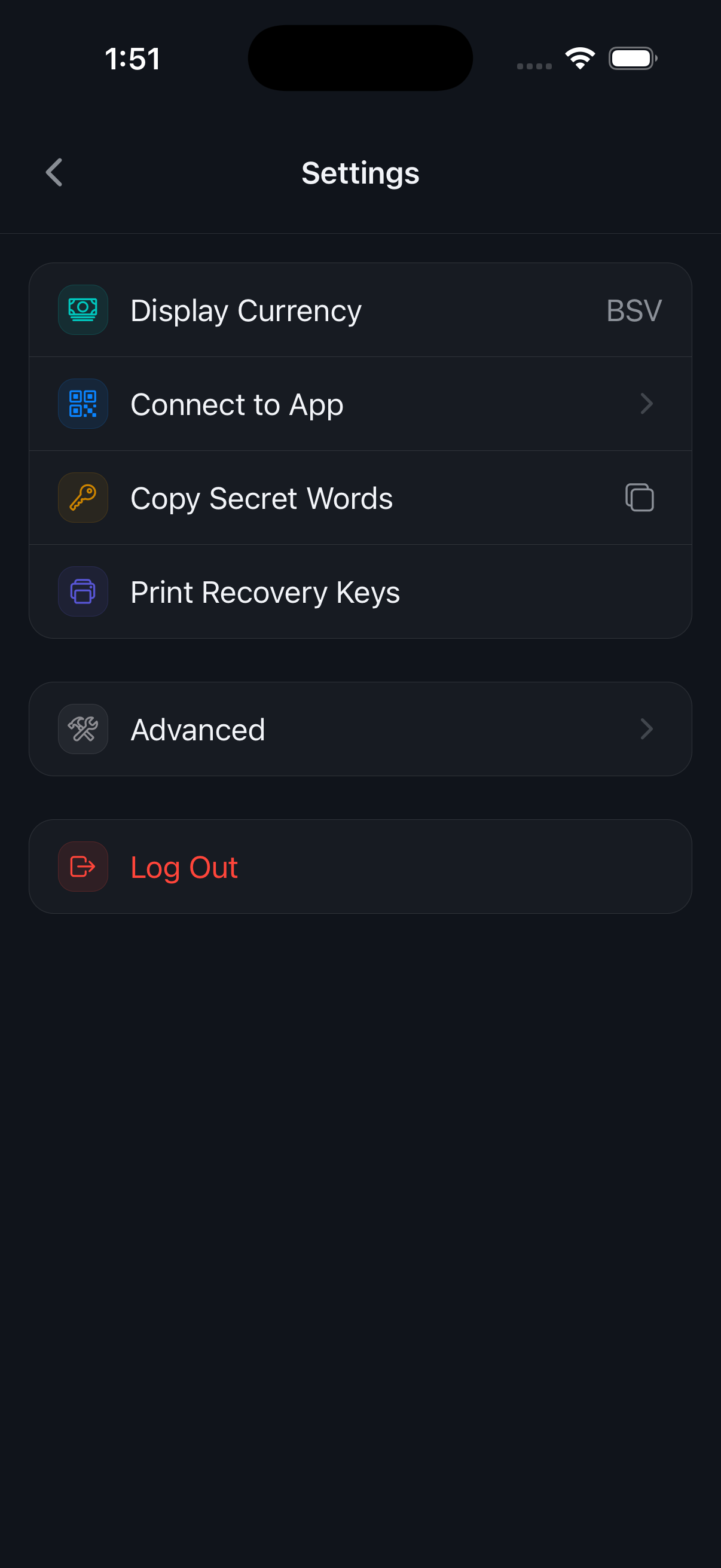
The gear icon on the home screen. Four everyday rows sit at the top; everything technical is folded into Advanced, which stays open once you open it.

The everyday rows

  • Display Currency — show amounts in satoshis, BSV, or US dollars. This changes how numbers are displayed, never what you hold.
  • Connect to App — pair with a desktop or web app by scanning its code.
  • Copy Secret Words — reveal and copy your twelve-word recovery phrase.
  • Print Recovery Keys — print three sheets, any two of which restore the wallet.

Advanced

  • BSV Network — mainnet for real money, testnet for experiments. Switching networks switches wallets: balances and history do not cross over.
  • ARC Endpoint — which service broadcasts your transactions. Change it only if you are running your own, or you were told to.
  • Auto Spend Up To — the limit under which connected apps can spend without asking each time.
  • Trust Network — whose identity certificates this wallet believes, and how much agreement it wants before it shows someone as verified.
  • Storage — where the wallet keeps its data, and how much space it is using.
  • Export / Import Wallet Data — a full copy of the wallet database as a file you keep. Unlike the recovery phrase this includes your history, so it is the right tool for moving to a new phone deliberately rather than recovering from a lost one.
  • Debugging — the app's own logs. Useful to attach when you report a problem.

Log Out

At the bottom, in red. This erases the wallet keys from this device. Your money is not gone — it lives on the blockchain and your recovery phrase brings it back — but without that phrase there is no way in afterwards. The app asks you to confirm before it does anything.

The Settings screen with Display Currency, Connect to App, Copy Secret Words, Print Recovery Keys, Advanced, and Log Out

Frequently Asked Questions

Where is my money actually kept?

On the BSV blockchain, like everyone else's. What your phone holds is the set of keys that can move it. If the phone breaks, the money is untouched; you restore the keys on a new phone and carry on.

Can I lose my funds?

Yes — by losing your recovery phrase and your printed sheets and your phone, or by sending money to the wrong address. Nobody can reverse a BSV payment or reset a lost phrase for you. Back up first, check addresses before confirming, and start with a small amount.

What is the difference between a handle and an address?

A handle is a name other people using this app can pay, and it stays the same. An address is a single-purpose string that any BSV wallet understands. Use a handle with people on this app, an address with exchanges and other wallets.

Does a payment reuse the same address every time?

No. The wallet derives a fresh key for each counterparty and each payment, which keeps unrelated payments from being trivially linked to one another on the blockchain.

Do I need to be online to get paid?

For a nearby payment, both phones need to be able to reach the network at the moment of payment. For a payment to your handle, the sender does not need you awake — it is waiting when your wallet next checks in.

What are satoshis?

The smallest unit of BSV: one hundred million of them make one BSV. Small amounts are easier to read in satoshis, which is why the wallet shows them by default. Switch to BSV or dollars under Display Currency.

Is my transaction history private?

The blockchain is public, so the transactions themselves are visible to anyone who looks. What is not public is who you are: the wallet does not ask for your name, your email, or your phone number. The optional encrypted backup is exactly that — encrypted with keys derived from your own secrets.

I switched networks and my balance vanished.

Testnet and mainnet are separate worlds with separate balances. Switch back to mainnet under Settings → Advanced → BSV Network and your money is where you left it.

Open Source

Every line of this wallet can be read, audited, and built by anyone. You do not have to take our word for what it does with your keys — you can check.

Licensed under the Open BSV License and developed in the open on GitHub.

View the source code on GitHub →

Open BSV License

Still Stuck?

Can't find the answer above? Reach out directly — we read every message.

Email Us

Questions about your wallet, a bug you hit, or anything else — send an email and the team will get back to you.

support@bsvassociation.org
🛠

Report a Bug or Request a Feature

BSV Wallet is open source. File an issue on GitHub and your feedback goes straight to the developers building the next release.

Open an issue on GitHub →